Adding Motion Components to Webflow
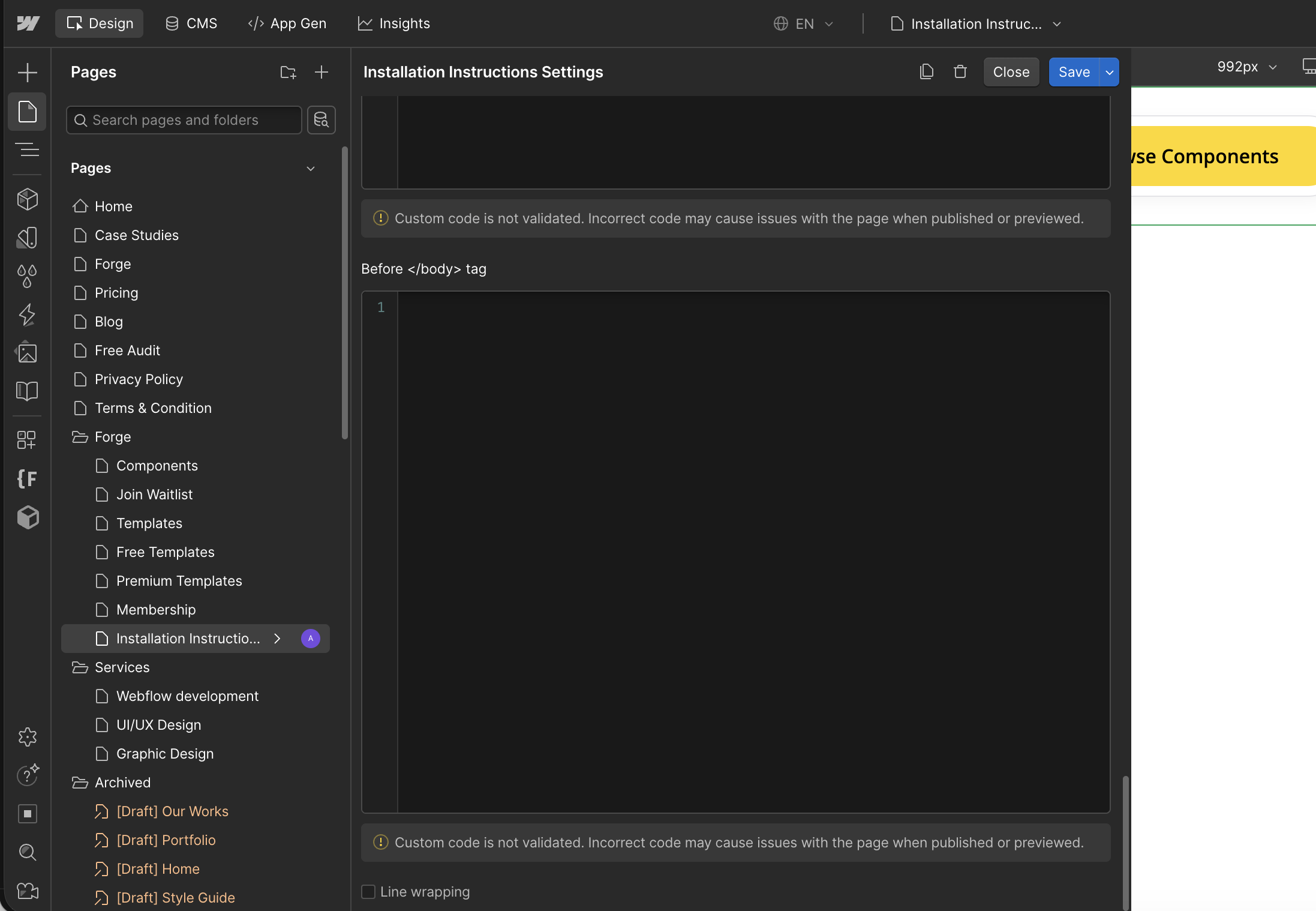
Option 1: Page-Specific Installation
Go with this option if you only plan to use the motion component on a single page.
- In the Designer, open the Pages panel and click the Gear Icon for your specific page.
- (CSS): Paste styles into the Inside <head> tag field.
- (JS): Paste scripts into the Before </body> tag field.
- Click Save and Publish.
Option 2: Global Installation (All Pages)
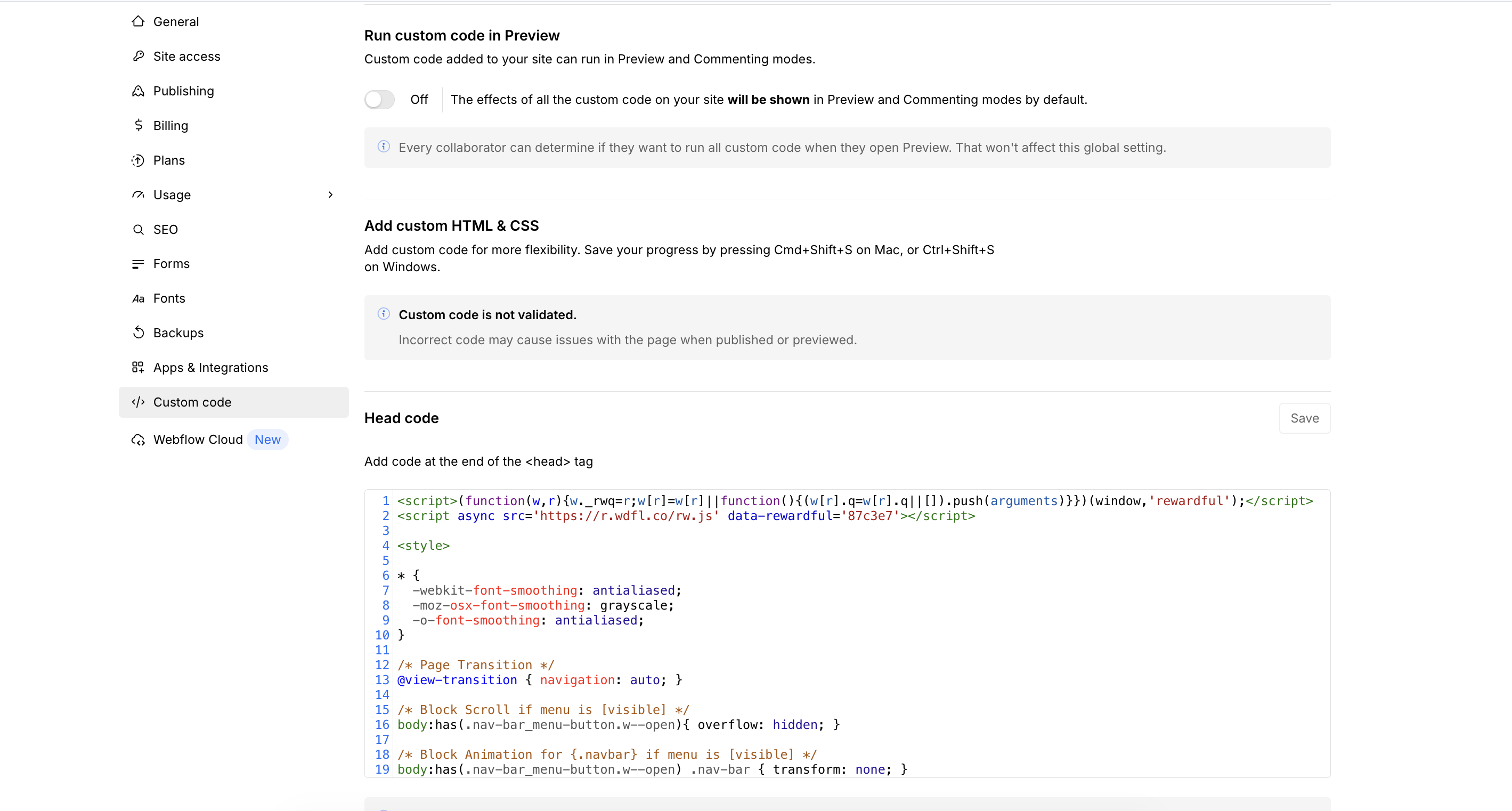
Go with this if you plan to use the motion component on multiple pages.
- Go to Project Settings > Custom Code.
- (CSS): Paste your
<link>or<style>tags into the Head Code section. - (JS): Paste your
<script>tags into the Footer Code section. - Click Save Changes and Publish your site.
⚡ Quick Reminders
- Check Live: Custom code only runs on the published site, not inside the Designer.
- Order Matters: Always place CSS in the Head and JS in the Footer for the best performance.
Get 5 Pro Motion Components Free
Subscribe to the newsletter and get new components weekly — ready to copy-paste. Quality pixels, no spam.
Oops! Something went wrong while submitting the form.